Breakdown 1 of 4
Escape Asset Helper
An Unreal plugin that checks asset names from import through to submit. I released it on GitHub, and another team adopted it.
Overview
Escape Asset Helper is a C++ plugin for Unreal Engine 5.6. It checks asset names on import, validates assets against rules you set up, and shows each asset’s status on its Content Browser thumbnail. I built it for Project UMBRAE and released it on GitHub, and the Stylised Beat-em-up team ended up using it too.
In Week 1 I wanted to run a renamer on Unreal’s on-import event, but C++ isn’t supported in a Blueprint project like Project UMBRAE, and that event isn’t exposed to Python or Blueprint. A plugin was the only way to get at it.
It was also the thing I most wanted out of the year. When I applied to Rebellion for an internship the summer before, the feedback was that the person who got it had a stronger tools portfolio. So I wanted to build a real tool that would benefit my team and show my C++, and I planned to release it publicly from the start.
This is where each part of the plugin comes in, from import to submit:
flowchart LR
  I([Import]) --> N[Name<br/>dialogue]
  N --> R{Queries<br/>met?}
  R -- yes --> A[Actions]
  R -- no --> K[No change]
  K --> O
  A --> O[Status<br/>overlay]
  O --> P{Submit<br/>check}
  P -- passes --> D([Depot])
  P -- fails --> W[Warn or<br/>block]
Get it
The plugin is on GitHub with precompiled binaries and a documentation wiki.
Choosing an approach
I looked at Unreal’s own Data Validation system (Epic Games, n.d.a) first, but it was too restrictive for what I wanted. It would have meant working in Blueprint, and it works at the asset rule level rather than in the import pipeline, which is exactly where I wanted to catch problems.
What I wanted was closer to Ryan DowlingSoka’s post-asset import rules (DowlingSoka, 2023a), which come as proof of concept versions in both Python and C++. Epic hasn’t exposed all the classes and delegates I needed to Python, so the plugin grew out of the C++ version (DowlingSoka, 2023b) and follows the standard plugin module pattern (Epic Games, n.d.c). It had been a while since I’d written C++, and header files and explicit types took some getting used to again.
I built the validator over the Christmas holiday and the naming side during reading week. The status overlay and the source control check went in once production started, and v1.0 was released in Week 6.
Asset naming
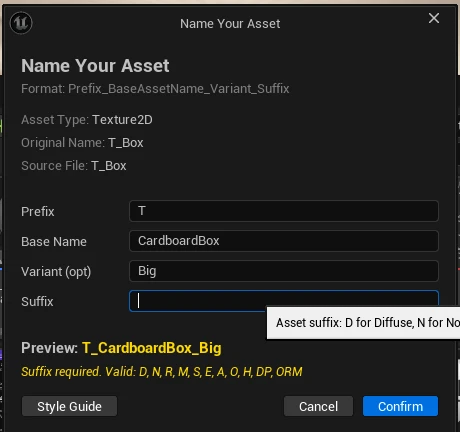
Names follow the Prefix_BaseAssetName_Variant_Suffix pattern. A diffuse texture
imported from cardboard box.png becomes T_CardboardBox_D: T for texture, the
name in PascalCase, and D for diffuse.
The defaults follow Allar’s UE5 style guide (Allar, 2022), which most Unreal
developers will already know. Conventions are inherited, meaning a rule for UTexture
also covers UTexture2D unless there’s a more specific one. Common suffixes are
normalised too, so Albedo, BaseColor and Diffuse all become D.
I kept the naming side non-invasive, so nothing gets renamed until you confirm it. The import dialogue fills in what it can work out from the file, tells you what’s missing and previews the final name.
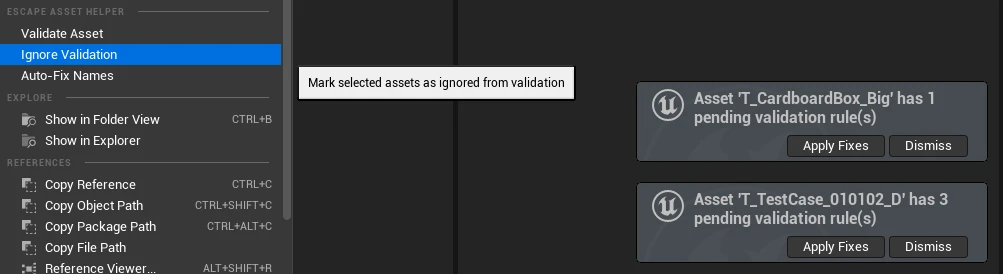
Assets already in the project get the same checks from the context menu, where you can validate, ignore or auto-fix a whole batch at once. The hardest part of this stage was hooking actions onto the editor’s event delegates.
Asset validator
The validator has three parts:
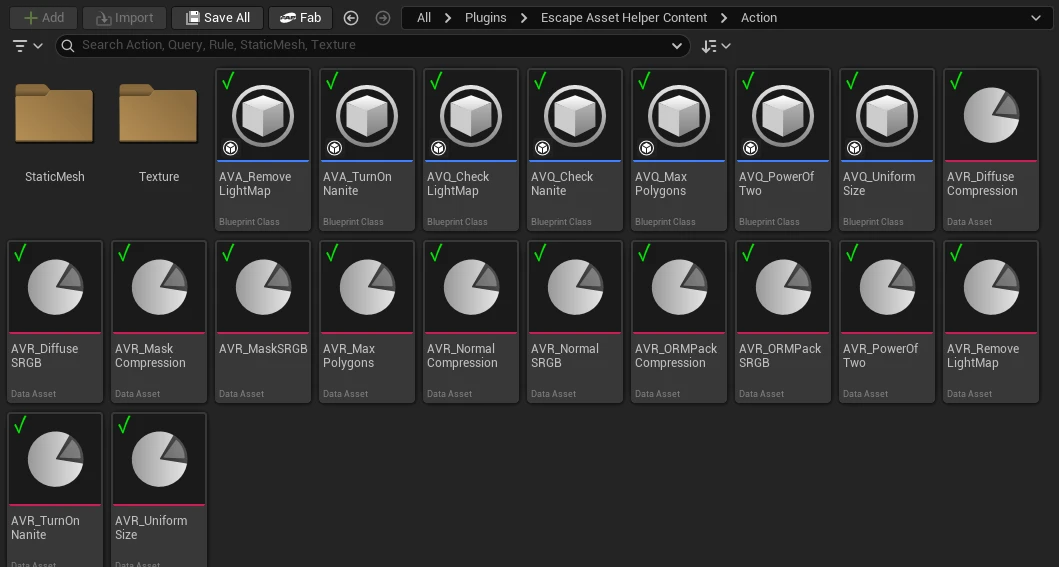
- Rules - apply to assets of a set Unreal class. A rule checks its queries, either requiring all of them or just one, then runs all of its actions on the asset.
- Queries - a condition an asset either meets or doesn’t.
- Actions - any behaviour that can be run on the asset.
Queries and actions can be written in Blueprint or C++. Adding a check means making a new asset, not editing the plugin. Most people never touch the defaults, so I wanted them to be sensible out of the box. Textures get the compression and sRGB settings their suffix implies, and static meshes get Nanite turned on and a warning above 30,000 polygons.
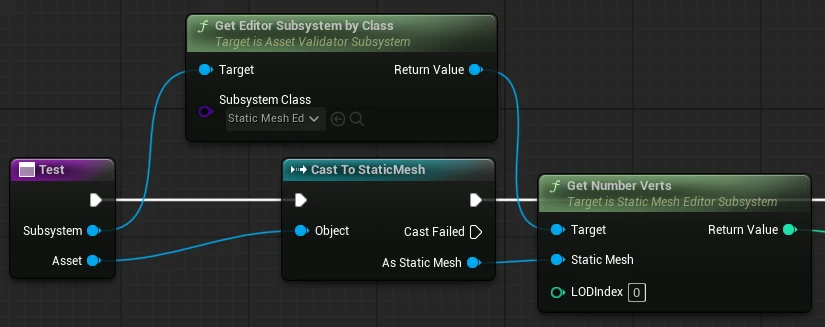
Before the public release, I also fixed a false compile error. Custom queries and actions are Editor Utility Blueprints, and using a subsystem inside one looked fine until you pressed Play, when it reported that the blueprint had failed to compile. It still worked, but the error made the tool look broken, so I added a node to get around it.
Asset status overlay
The overlay shows each asset’s status on its thumbnail, so you can see what needs fixing without opening anything. It’s inspired by IANistor’s Asset Status Overlay (Nistor, 2025), and without that as a reference I wouldn’t have worked out how to extend the Content Browser’s UI at all. Since the browser doesn’t support icons there, the states are text symbols: valid, invalid, ignored, and an orange one for classes that have no convention yet.
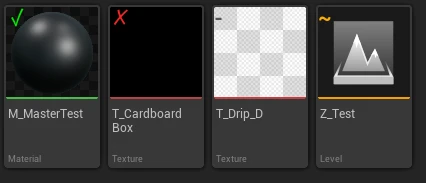
Unreal caches assets in the Content Browser. After a rename the status has to be re-cached, which isn’t the same as marking the asset as modified and saving it again. Once I had that working, the overlay updated in real time.
Source control
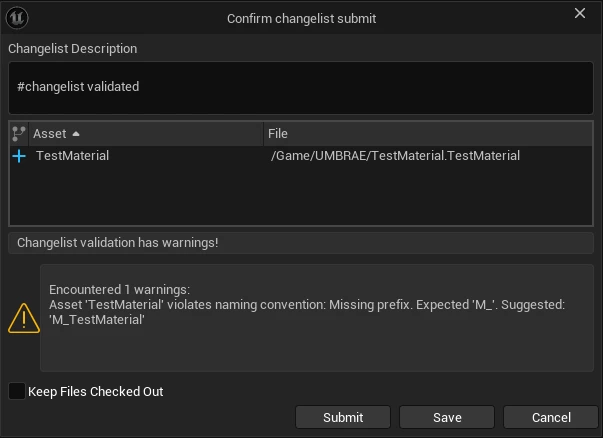
Querying an asset’s state through the Source Control Module took a lot of digging through the API docs (Epic Games, n.d.b), and renamed assets had to be added to changelists and checked out manually.
The check registers a pre-submit validation delegate, so it runs when someone submits a changelist from the editor:
void UAssetNamingSubsystem::OnPreSubmitDataValidation(FSourceControlChangelistPtr Changelist, EDataValidationResult& OutResult, TArray<FText>& OutErrors, TArray<FText>& OutWarnings)
{
    // Early out if disabled
    const UAssetHandlingSettings* Settings = GetSettings();
    if (!Settings || Settings->SourceControlMode == ESourceControlValidationMode::Disabled)
    {
        OutResult = EDataValidationResult::Valid;
        return;
    }

    // Gather pending files
    TArray<FString> FilesToValidate;

    ISourceControlProvider& Provider = ISourceControlModule::Get().GetProvider();

    // Only validate the changelist being submitted
    TArray<FSourceControlStateRef> FileStates;
    FSourceControlChangelistStatePtr ChangelistState = Changelist.IsValid()
        ? Provider.GetState(Changelist.ToSharedRef(), EStateCacheUsage::Use)
        : nullptr;

    if (ChangelistState.IsValid())
    {
        FileStates = ChangelistState->GetFilesStates();
    }
    else
    {
        // Providers without changelists fall back to every pending file
        FileStates = Provider.GetCachedStateByPredicate(
            [](const FSourceControlStateRef& State)
            {
                return State->IsCheckedOut() || State->IsAdded() || State->IsDeleted() || State->CanCheckIn();
            }
        );
    }

    for (const FSourceControlStateRef& State : FileStates)
    {
        FilesToValidate.Add(State->GetFilename());
    }

    bool bAllValid = ValidateFilesForSourceControl(FilesToValidate, OutErrors, OutWarnings);

    if (!bAllValid)
    {
        OutResult = EDataValidationResult::Invalid;
    }
    else
    {
        OutResult = EDataValidationResult::Valid;
    }
}
By default it only warns, but you can set it to block the submit completely and stop mistakes reaching the depot.
Settings
Everything is set from one project settings page, and the plugin passes its recommended defaults to the project automatically, so a team doesn’t have to fill anything in to get started.
- bool
- vector
- int
- string
Asset handling
- Ignore system
- Validation
- Source control
- Overlay
- Documentation
Asset naming
- Conventions
- Import
Asset validator
- Validator
Other teams
When I announced the release on Teams, the Stylised Beat-em-up team was interested,
and Denzel in particular wanted to use it. But on install it asked to compile the
plugin, which is exactly what shipping the binaries was meant to avoid, since the
university computers can’t compile from source. The cause was a missing flag in the
.uplugin and a .gitignore rule. I fixed both in v1.3.1, and Denzel’s install worked
after that.
What I’d add next
Next on my list was a smart quick add, a context menu action that takes the prefix and suffix from an asset that’s already named correctly and adds them to the config. That way the conventions could grow by example, instead of by editing settings.
Sources
Allar, M. (2022). ue5-style-guide: An attempt to make Unreal Engine projects more consistent. [online] GitHub. Available at: https://github.com/Allar/ue5-style-guide [Accessed 20 May 2026].
The default prefixes and naming rules.
DowlingSoka, R. (2023a). #notGDC-2023: Unreal Post Asset Import Actions. [online] ryandowlingsoka.com. Available at: https://ryandowlingsoka.com/unreal/post-asset-import-rules/ [Accessed 20 May 2026].
The Python versus C++ trade-off, and the starting point for the plugin.
DowlingSoka, R. (2023b). UnrealImporterRules-CPP. [online] GitHub. Available at: https://github.com/Ryan-DowlingSoka/UnrealImporterRules-CPP [Accessed 20 May 2026].
The rules, queries and actions the validator grew out of.
Epic Games (n.d.a). Data Validation in Unreal Engine. [online] Epic Developer Community. Available at: https://dev.epicgames.com/documentation/en-us/unreal-engine/data-validation-in-unreal-engine [Accessed 20 May 2026].
Unreal's built-in alternative, which I looked at first.
Epic Games (n.d.b). ISourceControlModule. [online] Unreal Engine C++ API Reference. Available at: https://dev.epicgames.com/documentation/en-us/unreal-engine/API/Developer/SourceControl/ISourceControlModule [Accessed 20 May 2026].
The pre-submit hook.
Epic Games (n.d.c). Plugins in Unreal Engine. [online] Epic Developer Community. Available at: https://dev.epicgames.com/documentation/en-us/unreal-engine/plugins-in-unreal-engine [Accessed 20 May 2026].
The standard plugin module pattern the plugin follows.
Nistor, I. (2025). Asset Status Overlay. [online] Fab. Available at: https://www.fab.com/listings/2adac10a-50d4-4232-a9de-a88b8b387ac1 [Accessed 20 May 2026].
How to extend the Content Browser's thumbnails.